|
<< Back
Links
link
link
link
link
link
link
|
SetiDriver is a graphical add-on that allows you to cache Work Units (WUs) so that an internet connection is not required all of the time.
>>>Download<<<
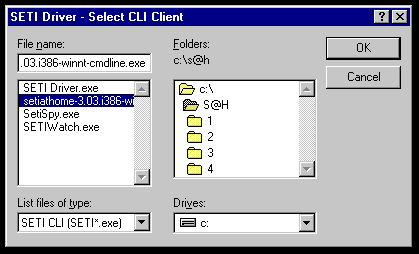
The first time you run SetiDriver you will see the above, you must tell it where your CLI Seti client is located at on your computer.
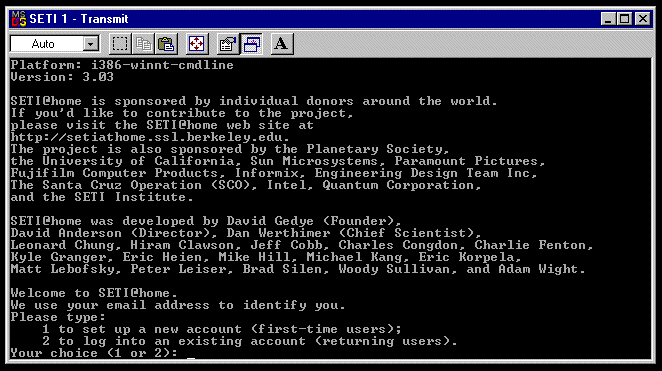
You must either create a new account or sign into an existing one. It will ask you a few questions then download your first work unit and start processing it.
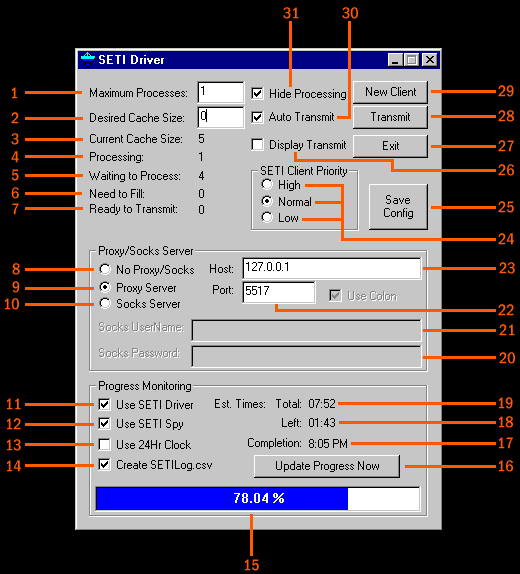
- Maximum Processes - Sets how many instances of Seti that will be run.
- Desired Cache Size - Tells SetiDriver how many work units to store on your hard drive so that you can continue crunching even if you are unable to connect to the server.
- Current Cache Size - Shows how many work units are currently stored locally (including one currently being processed)
- Processing - Tells how many work units are currently being crunched. (See "Maximum Processes")
- Waiting to Process - Shows how many work units are waiting to be processed.
- Need to Fill - Shows how many work units need to be downloaded to fill the cache.
- Ready to Transmit - Shows how many results are ready to be sent back.
- No Proxy/Socks - All work units and results are downloaded/sent directly to the main server.
- Proxy Server - Use this option if you want to connect through a proxy server.
- Socks Server - Use this option if you want to connect through a socks server.
- Use SETI Driver - Lets SetiDriver display the progress bar and times.
- Use SETI Spy - Lets external programs access the progress of the current work unit.
- Use 24Hr Clock - Displays the times in "Military Time".
- Create SETILog.csv - Allows SetiDriver to create a log file that many programs can read.
- Progress Bar - Shows what percentage of the work unit has been completed.
- Update Progress Now - Updates the Progress Bar and times if "Use SetiDriver" is not checked.
- Completion - Tells when the estimated completion time of the current work unit is.
- Left - Tells the estimated amount of time until the current work unit is complete.
- Total - Tells the estimated total time that work unit will take to complete.
- Socks Password - Where you enter your password if you are using a socks server.
- Socks UserName - Where you enter your Username if you are using a socks server.
- Port - Where you type the port number of the proxy server you are using (only if the "Proxy Server" radio button is filled).
- Host - Where you type either the IP address or Domain name of the proxy server you are using (only if the "Proxy Server" radio button is filled).
- SETI Client Priority - How much processor time the Seti client receives.
- Save Config - Saves your current settings.
- Display Transmit - Displays the command line program when you return a work unit.
- Exit - Exits SetiDriver and stops processing of all work units.
- Transmit - Sends the results of completed work units and downloads new work units to be processed. You only have to do this when you run low on cached work units.
- New Client - Do not press this button.
- Auto Transmit - SetiDriver will automatically transmit results and work units (only recommended if you have an always on connection to the internet). With this you will not have to press the transmit button and you can leave your computer alone and it will take care of itself.
- Hide Processing - Hides the command line Seti client.
|
